Manage participants
Who: the competition admin. When: before the schedule draw (the add button disappears afterward).
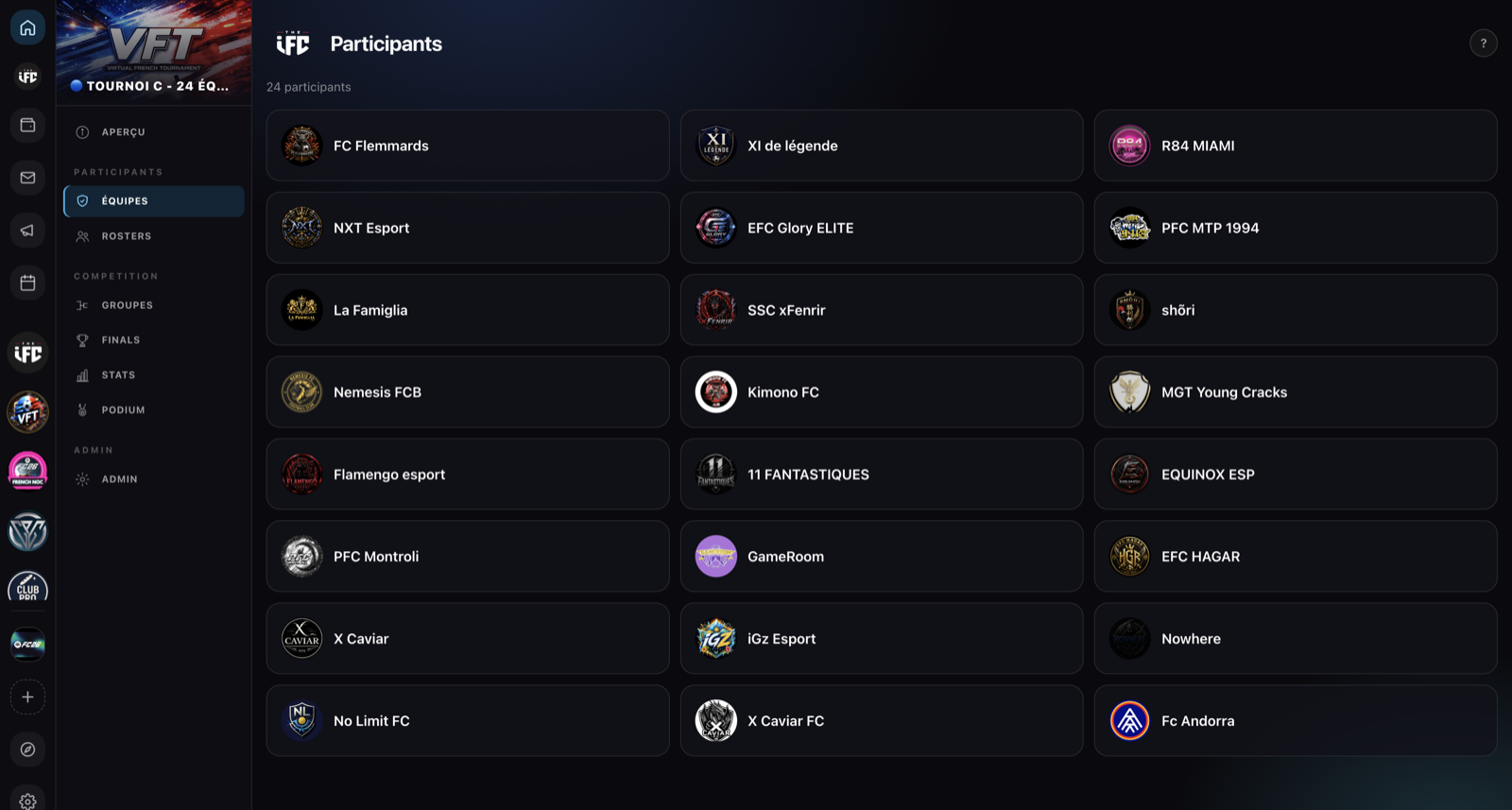
Add participants
- Participants / Teams page → + Add a team button (or + Add a player in solo mode).
- A panel opens with a search. Already-registered entries are filtered out.
- Click to register — the addition is immediate. Confirmation "N participant(s) registered."
In team mode, only the organization's linked and approved teams are offered: they are therefore necessarily of the same game edition as the competition (the rule also applies when replacing a participant).
Participant statuses
| Status | Meaning |
|---|---|
| Approved | Registered, competing |
| Pending | Registration to validate |
| Withdrawn | Declared withdrawn (automatic loss, deposit lost) |
| Rejected | Registration refused |
Coin competition: "Entry fees unpaid"
On a competition with fees or a deposit, a team added by the organizer only pays by confirming its participation itself (from its Competitions page). Until it has paid, a red mention flags it in the list, and the draw is blocked. See Coin competitions.
Acting on a participant
Click a participant to open their card. The admin can:
- Declare withdrawal / Cancel withdrawal (toggle approved ↔ withdrawn).
- Replace with… — substitute another team/player (search). Possible even after the draw.
- Remove from the tournament (red button) — only before the draw.
How many participants?
- League: no strict format minimum.
- Tournament (with groups): at least 6 participants to generate a group format (otherwise: "You need at least 6 participants to generate a group format.").
Tournament rosters (squad)
In team mode, each entered team builds a roster = the list of its players entered in this tournament (distinct from the overall squad).
- Where: a participating team's card → Manage the roster, or the tournament's Rosters section.
- Who: the team's captain / co-captain (or an admin).
- Contract required: only players under contract with the team can be added to the roster. Free Agents show greyed out with a badge — offer them a contract first.
- Editing: two lists — Competition roster and Rest of the squad; click a player to add/remove them. Then Confirm (N players).
- Locking: if the roster is locked (🔒 "Roster locked. Contact an organizer to change it."), only an admin can change it.